

Running a large language model (LLM) locally on your Windows PC is one of the highest-ROI AI setups in 2026. You get a private, always-available chatbot for drafting, summarizing, and brainstorming—often offline after the first download—and you avoid subscriptions and usage limits.
If you’ve been using cloud tools like ChatGPT/Claude/Gemini and want the same “assistant” experience locally, start here. (If you’re still comparing cloud models first, see: Claude vs GPT vs Gemini (2026)
https://logixcontact.site/claude-vs-gpt-vs-gemini-2026/)
My recommendation (if you don’t want to waste time)
If you’re new, start with LM Studio + a 7B/8B instruct model. If you want a local API later, install Ollama next.
This guide covers the two easiest options for Windows:
- Ollama (simple runtime + great for local API/workflows)
- LM Studio (GUI-first, easiest way to browse/download/test models)
Outbound (official) links used in this guide:
- Ollama: https://ollama.com/
- LM Studio: https://lmstudio.ai/
- Hugging Face models directory: https://huggingface.co/models
What you need (requirements)
Local AI performance depends heavily on your hardware and the model size you choose. Here’s a safe way to set expectations:
Minimum (works, but stay modest with model size)
- Windows 10/11 (64‑bit)
- RAM: 16GB
- Storage: 15–30GB free (models take space fast)
- CPU: modern 4–6 core
- GPU: optional (CPU-only is possible, just slower)
Recommended (smooth daily use)
- RAM: 32GB (especially if you multitask)
- Storage: SSD / NVMe
- GPU: NVIDIA RTX (significant speedups, but not required to start)
If your goal is a full, budget-friendly AI stack (not just local LLMs), this pairs well with:
Complete AI workflow under $50/month (2026 guide)
https://logixcontact.site/complete-ai-workflow-under-50-month-2026-guide/
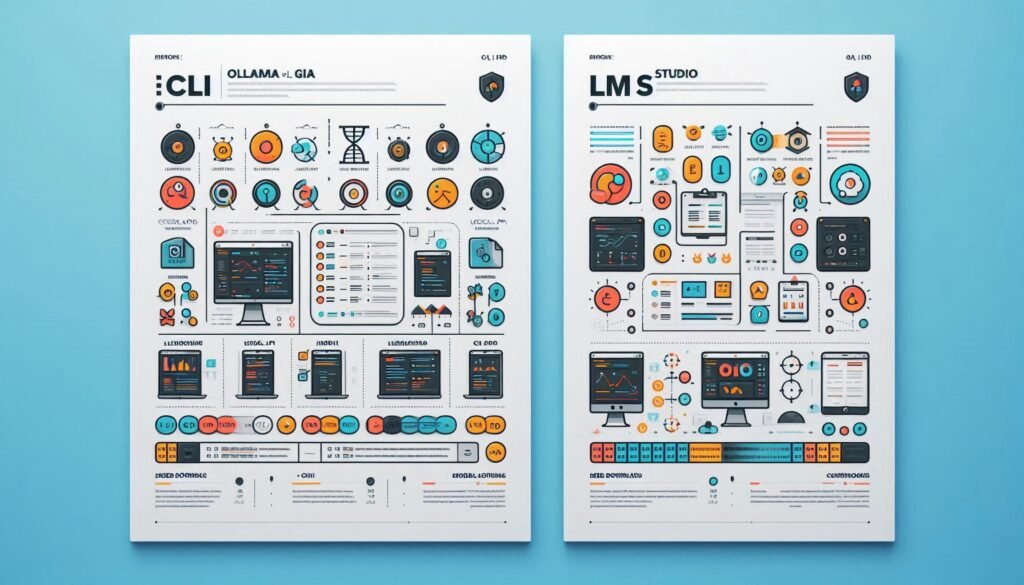
Ollama vs LM Studio (which one should you choose?)
Both are good. The “best” choice depends on how you like to work.
Choose Ollama if you want:
- very simple “install → run model” experience
- a stable local runtime you can automate
- a clean local API vibe for apps and workflows
Choose LM Studio if you want:
- a beginner-friendly GUI
- easy browsing/downloading models in-app
- quick testing of multiple models + settings
Practical recommendation: install both. Use LM Studio to experiment and find what feels good, then use Ollama for a consistent “daily driver” setup.
If you want a deeper privacy-first walkthrough beyond this post, read:
Run a private AI assistant locally (2026 guide)
https://logixcontact.site/run-private-ai-assistant-locally-2026-guide/
Option A — Run local AI with Ollama (Windows)
Step 1: Install Ollama
- Go to the official website: https://ollama.com/
- Download the Windows installer and install it like any normal app.
- Restart your PC if prompted.
Step 2: Run your first model
Open PowerShell (or Command Prompt) and run:
ollama run llama3.1
If that model name isn’t available on your setup, try:
ollama run mistral
On first run, Ollama will download the model, set it up, and open an interactive chat in your terminal.
Step 3: Essential Ollama commands (beginner-friendly)
List installed models
ollama list
Remove a model (free storage)
ollama rm <modelname>
Run another model
ollama run <modelname>
Model size tip (this prevents 80% of “it’s slow” complaints)
If you’re on 16GB RAM, start with 7B–8B class instruct models.
If you’re on 32GB RAM (and preferably a decent GPU), you can experiment with 13B class models.
Bigger isn’t automatically better—especially if it makes your system sluggish. A smaller model that responds quickly is often more useful day-to-day.
Option B — Run local AI with LM Studio (Windows GUI)
Step 1: Install LM Studio
- Download from the official site: https://lmstudio.ai/
- Install and launch it.
Step 2: Download a model (how to choose)
In LM Studio, look for models that are:
- labeled Instruct or Chat (this matters—these behave like assistants)
- small enough for your machine (start small, then scale up)
Where do models come from? Many are hosted on Hugging Face:
https://huggingface.co/models
Beginner recommendation: start with a 7B/8B instruct model. It usually gives the best balance of speed + quality on typical Windows PCs.
Step 3: Load and chat
- Go to the Chat screen
- Select your downloaded model
- Click Load
- Start chatting
Step 4: Simple settings that improve output (without confusing people)
Use these as “safe defaults”:
- Temperature: 0.6–0.8 (balanced)
- Max output tokens: 600–1200 (higher = longer answers = slower)
- Context length: keep moderate on 16GB RAM (high context uses more memory)
If readers say “it crashes” or “my PC freezes,” reducing context length is one of the fastest fixes.
What models should beginners run locally? (keep it simple)
Instead of overwhelming readers with a huge list, give them categories:
General-purpose (best for most people)
- A modern 7B/8B instruct model
- Use it for: summaries, rewriting, brainstorming, studying, planning
Writing/marketing (works surprisingly well locally)
Most marketing tasks don’t require a giant model—they require a good prompt. For example:
- “Write 10 hooks for this product”
- “Give me 5 ad variations in 3 tones (luxury, friendly, direct)”
- “Rewrite this landing page section for clarity and conversions”
For copy/paste prompt templates, link these:
- ChatGPT prompts: 12 copy/paste templates
https://logixcontact.site/chatgpt-prompts-12-copy-paste-templates/ - Get better answers from ChatGPT (works for local models too)
https://logixcontact.site/get-better-answers-from-chatgpt/
Coding help
Local code-tuned models can be great for:
- explaining code
- generating snippets
- refactoring small modules
- writing tests
Tip for readers: if a local model struggles, ask it to think step-by-step, provide constraints, and paste small chunks of code.
Offline + privacy: the main reason people switch to local
One big advantage of local AI is that after downloading a model, you can often use it offline. This is valuable when you want:
- more control over privacy
- a consistent assistant even if cloud tools are down
- a setup that works without constant internet access
If you also want alternatives beyond ChatGPT-style tools, see:
ChatGPT alternatives (2026)
https://logixcontact.site/chatgpt-alternatives-2026/
And if you’re building your overall AI toolkit across formats (not just text), this hub post is relevant:
AI for images, video, audio, code
https://logixcontact.site/ai-for-images-video-audio-code/

Troubleshooting (evergreen traffic section)
Problem 1: “It’s too slow”
Try this checklist:
- Switch to a smaller model (7B/8B first)
- Close heavy apps (Chrome tabs, games, video editors)
- Make sure you’re on an SSD (HDD will feel painful)
- Update GPU drivers (if you have a GPU)
- Reduce context length
- Reduce max output tokens
Problem 2: “Out of memory” / crashes
This almost always means the model is too big for available RAM/VRAM (or your context length is too high).
Fixes:
- reduce context length
- lower output tokens
- choose a smaller model
- restart the app after changes
Problem 3: “It’s not using my GPU”
- Update GPU drivers
- Confirm your machine supports acceleration properly
- If you’re on older hardware, CPU-only is fine—just use smaller models
Related (cloud-side) troubleshooting
If the reader’s problem is actually that ChatGPT is broken in the browser/app, send them here:
Fix ChatGPT not responding
https://logixcontact.site/fix-chatgpt-not-responding/
FAQ
Can local AI replace ChatGPT completely?
For many daily tasks (drafting, rewriting, summarizing, basic coding help), yes. For top-tier reasoning, the newest knowledge, and certain tool integrations, cloud AI can still be stronger.
Do I need an RTX GPU?
No. You can start CPU-only. But if you want faster responses, a modern GPU helps a lot.
What’s easiest for beginners?
LM Studio—because it’s GUI-first and model downloads are straightforward.
If you’re totally new and want the basics first, start here:
What is ChatGPT? (Beginner guide + real examples, 2026)
https://logixcontact.site/what-is-chatgpt-beginner-guide-real-examples-2026/

Logix Editorial Team publishes practical guides on AI tools, tech workflows, and digital productivity. We test tools, update articles regularly, and aim to explain complex topics in simple, actionable steps.











No Comments